-
-
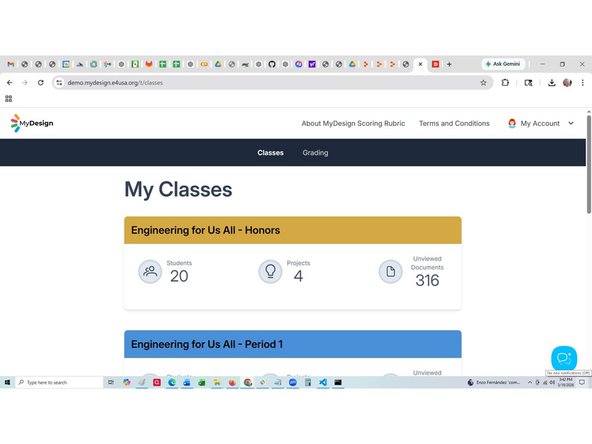
Navigate to My Classes in e4usa MyDesign®
-
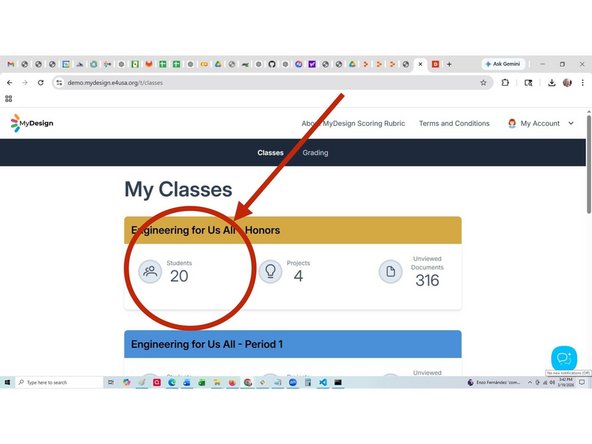
Select anywhere within the chosen class card
-
-
-
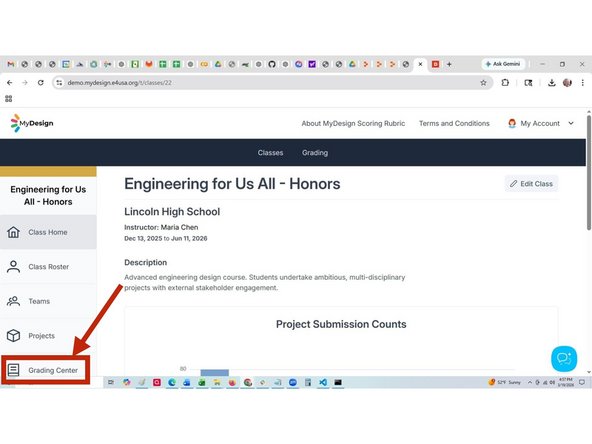
Class Home page appears
-
Select Grading Center
-
-
-
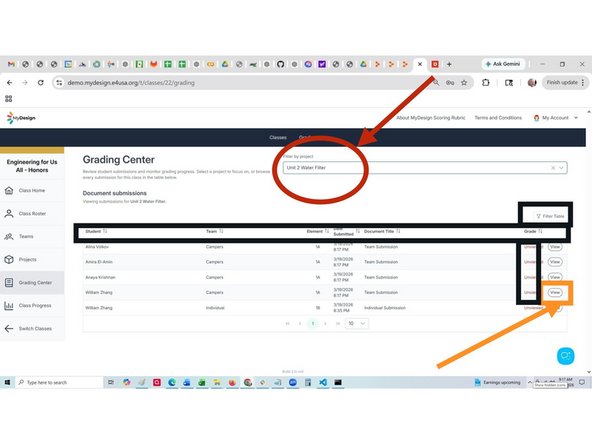
Sort columns and create filters with the Filter Table to declutter the display. See the Guide for "Filtering Tables of Student Submissions in e4usa MyDesign®".
-
Select "Unit 2 Water Filter" from Filter by project dropdown list
-
A document has been submitted by team "Campers" for Element B. The Grade is Unviewed for the four students in the team.
-
Select View for one of the students
-
-
-
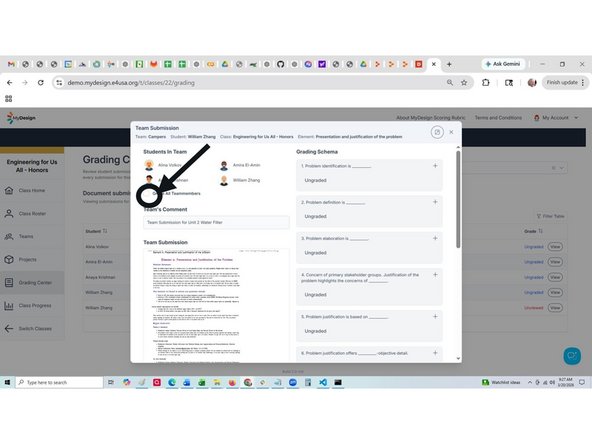
A check box is provided for Grade All Teammembers. The score for this session can be applied to just the student selected or to the whole team.
-
DO NOT Select the Grade All Teammenbers checkbox
-
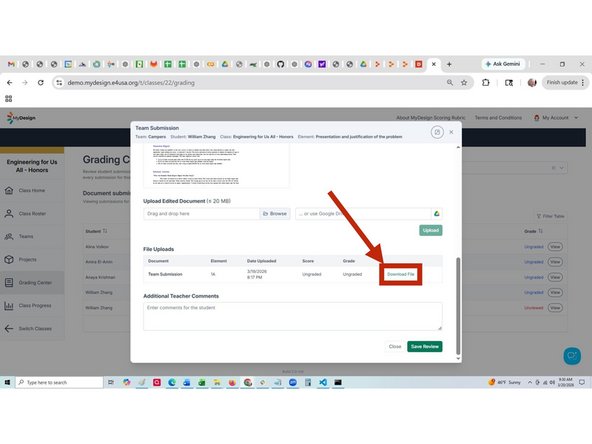
Scroll down to the bottom of the scoring template and select Download File to view the team submission for scoring. You can download to your local drive, Google Drive, USB, etc.
-
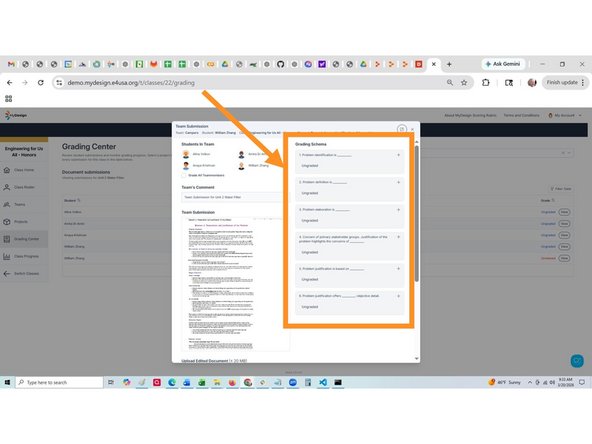
Scroll to the top and score the student submission against the EDPPSR rubric using the Grading Schema
-
-
-
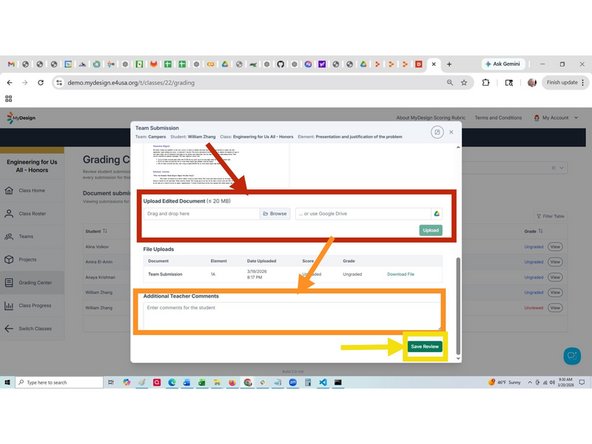
Markup a downloaded student submission on either a local disk or Google Drive if desired. Scroll down to Upload edited document to upload a copy.
-
Provide Additional Teacher Comments if desired
-
Select Submit Review
-
Repeat Steps 3, 4 and 5 to review the Individual Submission
-
-
-
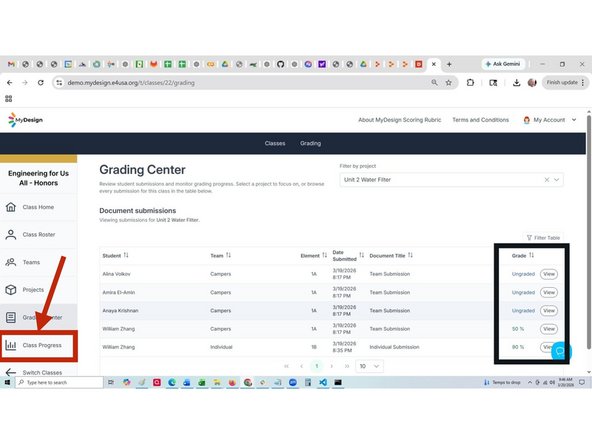
Note that the team document submission for the student who was scored is shown with an actual grade, while the Grade is shown as "Ungraded" for the remaining three students in the team who were not graded.
-
An actual grade is shown for the Individual Submission.
-
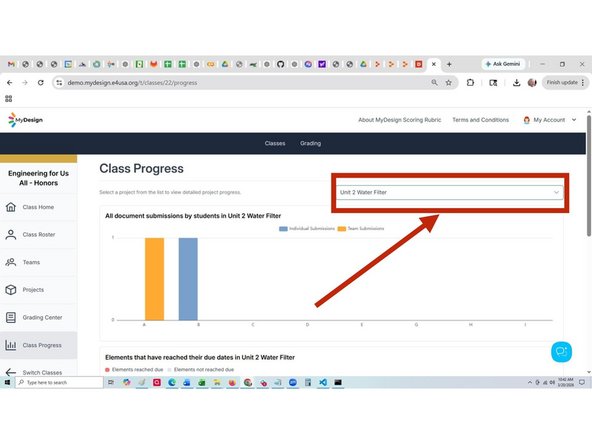
Select Class Progress
-
-
-
Select "Unit 2 Water Filter" from the Please select a project dropdown list
-
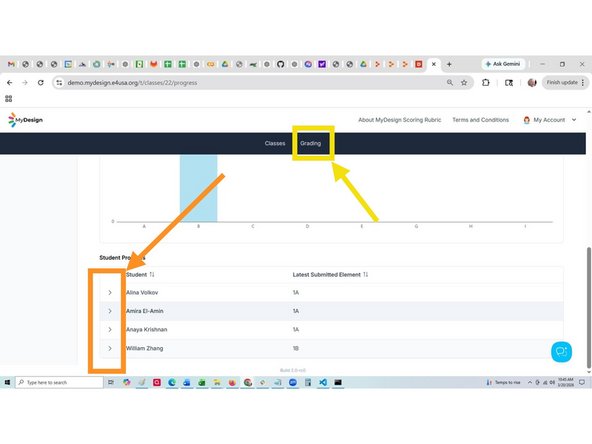
Scroll down and note the latest element submitted for each student.
-
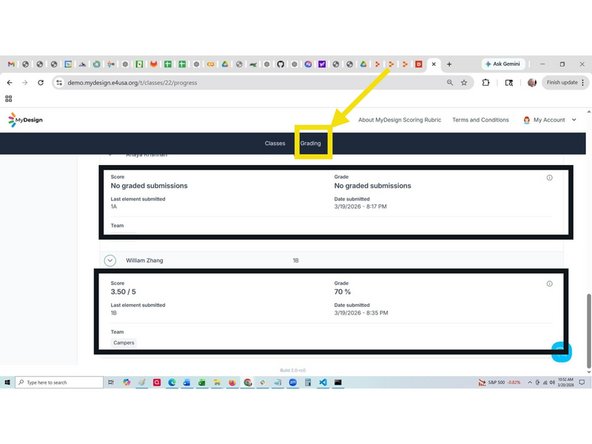
Expand each student to view details
-
Note that only the student who was scored (individual and team) has scores and grades. The student who was scored for both team and individual submissions shows the average scores and grades for submitted documents.
-
Select Grading
-
-
-
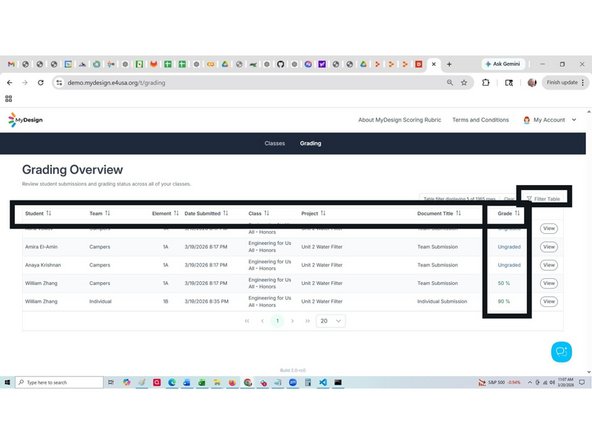
Use column sorting and create filters with the Filter Table to declutter the display. See the Guide for "Filtering Tables of Student Submissions in e4usa MyDesign®".
-
Grading Overview screen shows Grade as the actual grades for the student who was scored and "Ungraded" for the students who were not.
-
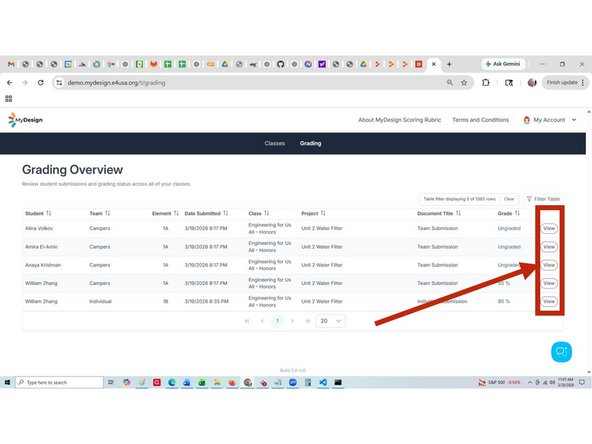
The document can also be graded by selecting View from the Grading Overview.
-
-
-
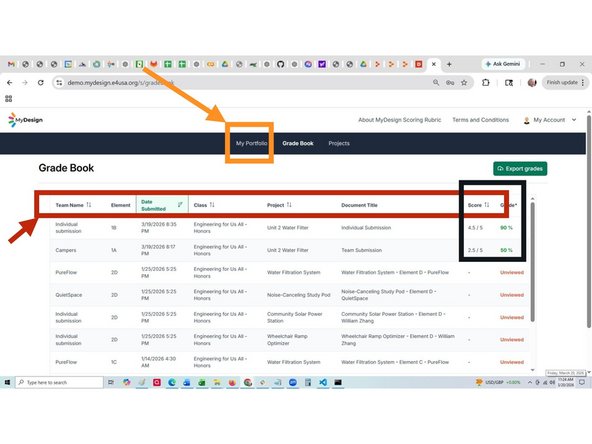
Navigate to the student Grade Book screen
-
Sort the columns to isolate the submissions of interest
-
Score and Grade columns show the actual scores and grades for students that were scored and "Ungraded" for the others.
-
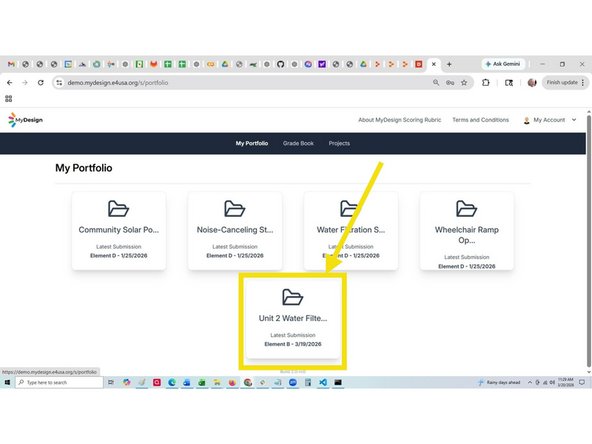
Select My Portfolio
-
Select the Unit 2 Water Filter card
-
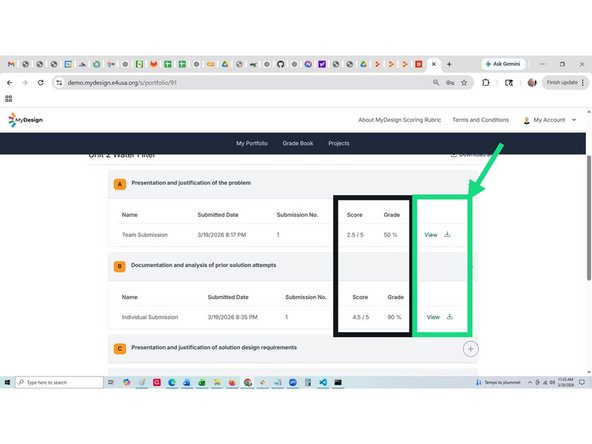
"Element A and B Team and Individual " Score and Grade columns show the actual score and grade for students who were scored and "Ungraded" for other students in the team who were not scored.
-
You can select View to review detailed scoring, teacher document markups and teacher comments.
-
-
-
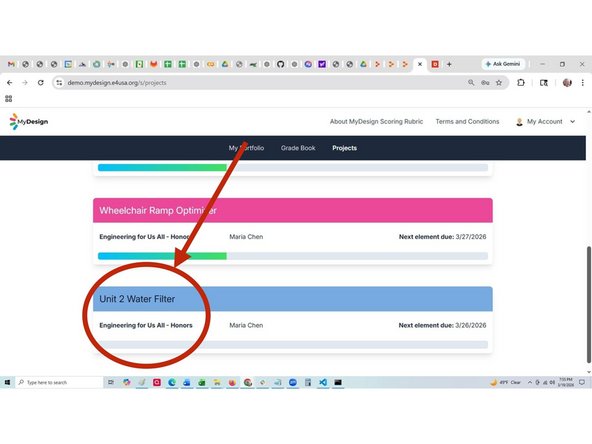
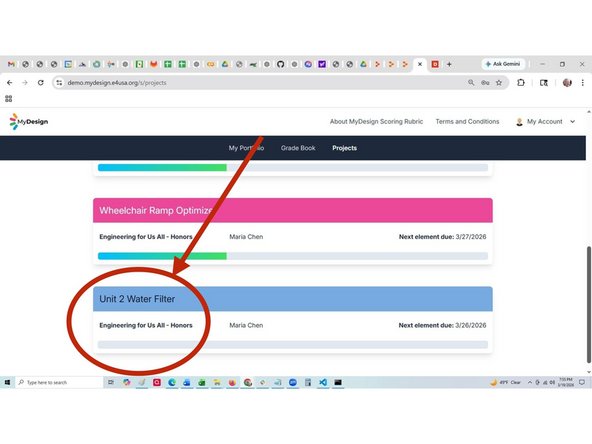
Navigate to student view My Projects in e4usa MyDesign®
-
Select anywhere within the desired project card
-
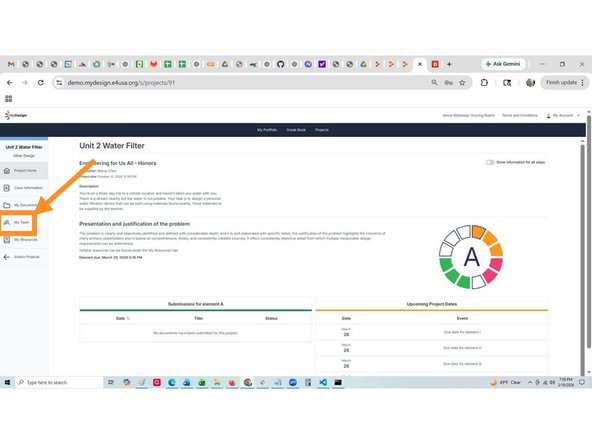
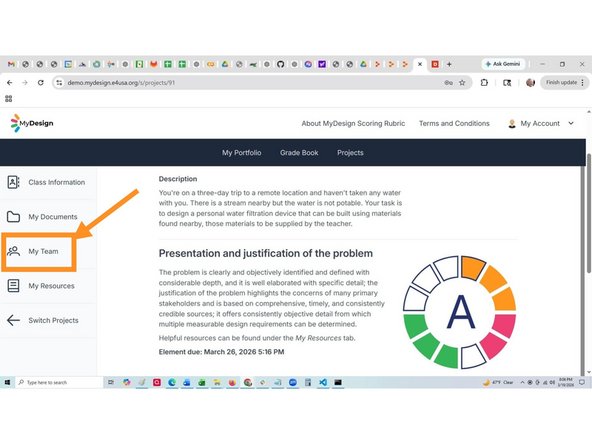
Select My Team
-
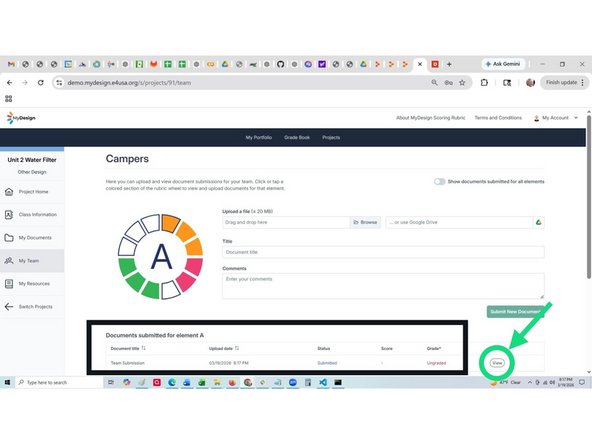
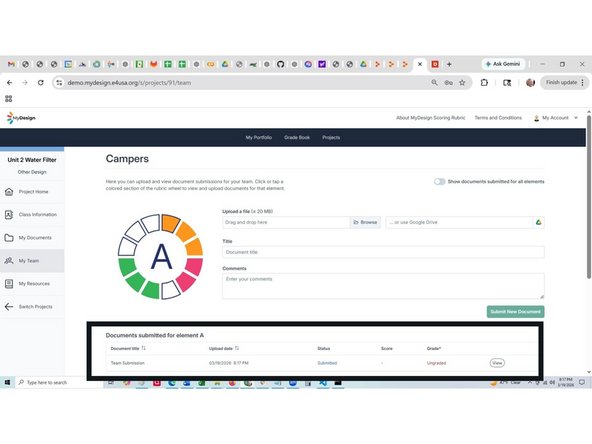
"Status", "Score" and "Grade" are "Graded" with actual scores and grades, for the student who was scored; "Ungraded" and "No Graded Submissions" for other students in the team who were not scored.
-
View scoring details, teacher markups and teacher comments by selcting View
-
-
-
Navigate to My Projects in e4usa MyDesign®
-
Select anywhere within the desired project card
-
Select My Team
-
The process for viewing Individual document "Status", "Score" and "Grade" is the same as for team submissions
-
-
-
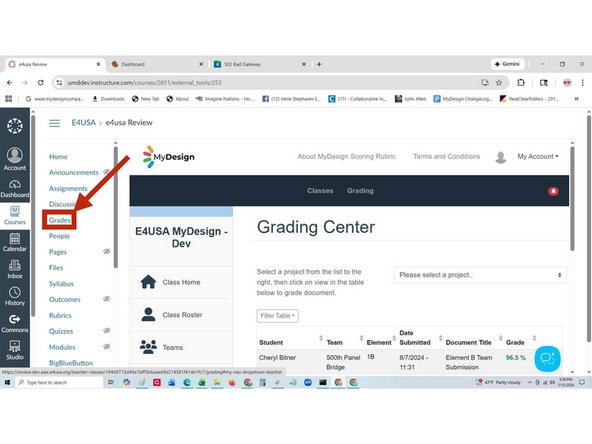
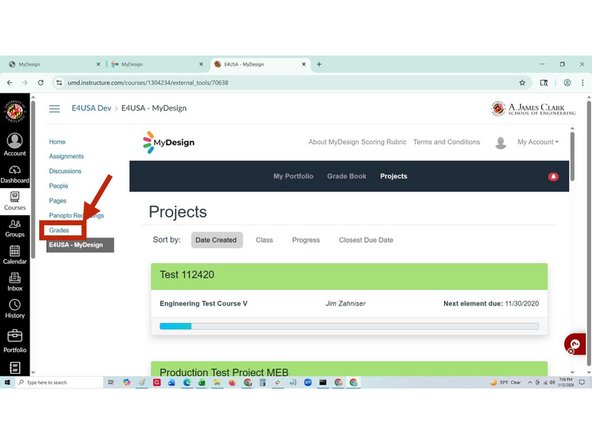
For teachers using the Canvas LMS version of MyDesign®, select Grades in the Canvas panel on the left of the screen.
-
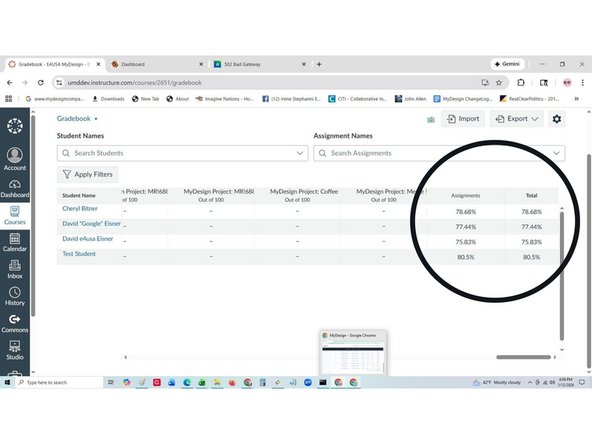
The Canvas Grade Book appears with a table of student grades for all project.
-
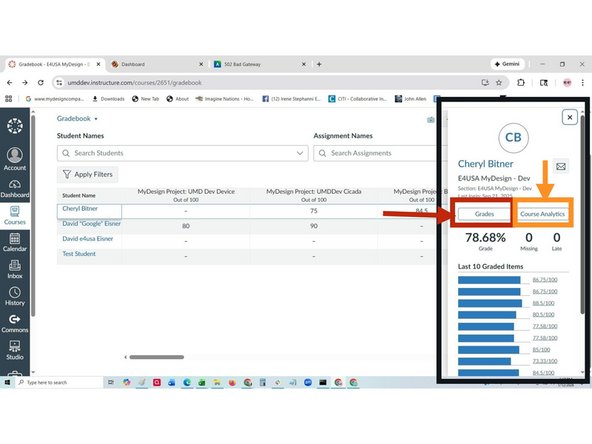
select a Student Name
-
-
-
Observe grade history for an individual student for the most recent 10 submitted documents
-
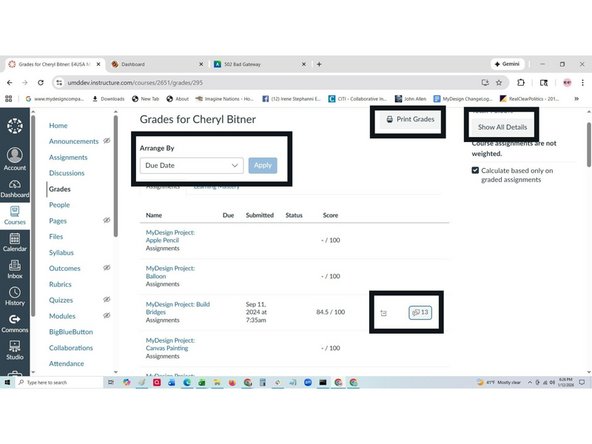
Select Grades on the individual student screen
-
A table appears with historical grading data for the selected student. The table can be Arranged in different ways, Show All Details displays details for each grade, a selection is provided for Viewing Comments and a Print option is offered.
-
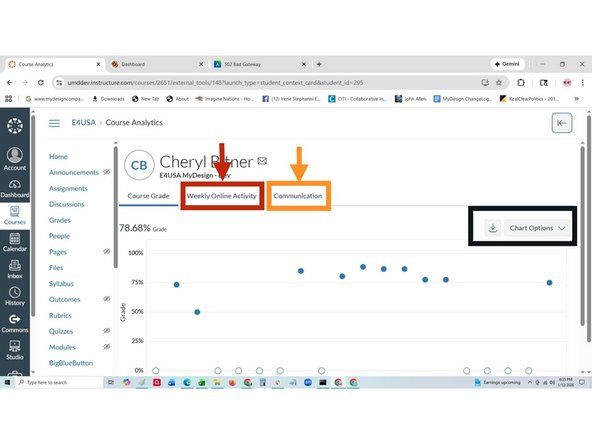
Alternatively, select Analytics on the individual student screen
-
-
-
Analytics are provided for the selected student grades. For Course Grade, a graph for table are options for display and a download service is provided.
-
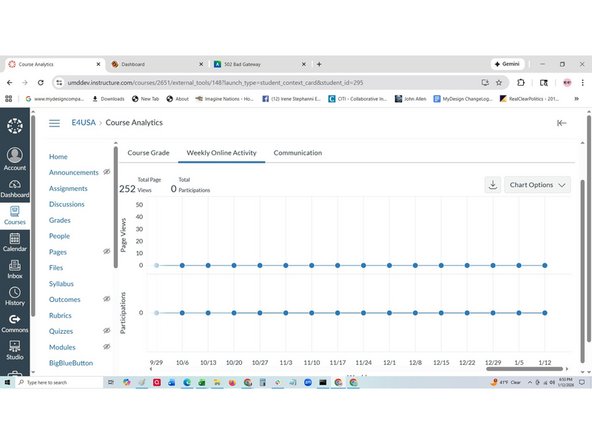
Select Weekly Online Activity to observe a table or plot of number of views.
-
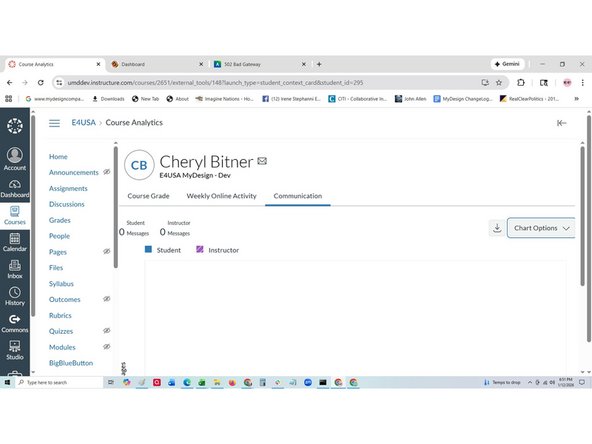
Select Communications to observe a table or plot of student and instructor messages
-
-
-
For students using the Canvas LMS version of MyDesign®, select Grades in the Canvas panel on the left of the screen.
-
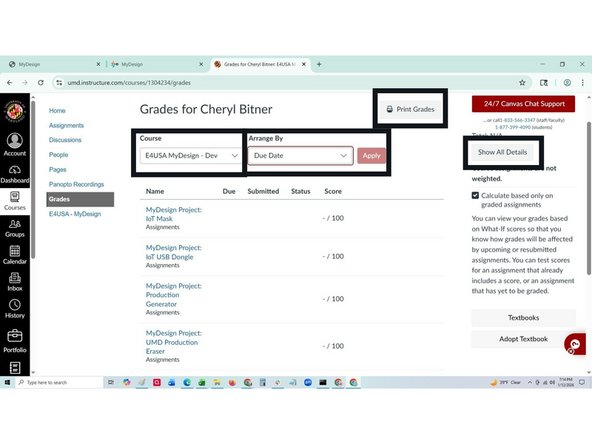
A table appears with historical grading data for the selected student and Course. The table can be Arranged in different ways, Show All Details displays details for each grade and a Print option is offered.
-
-
-
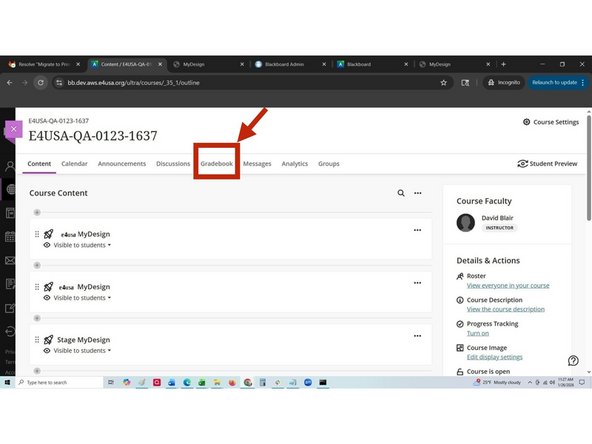
For teachers using the Blackboard LMS version of MyDesign®, select Gradebook from the Course Content page
-
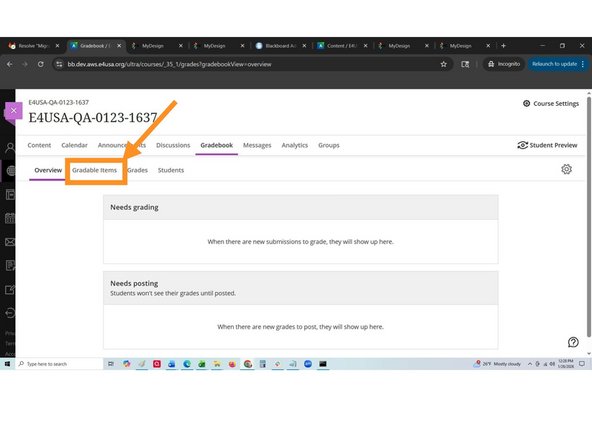
In Gradebook Overview, select Gradable Items
-
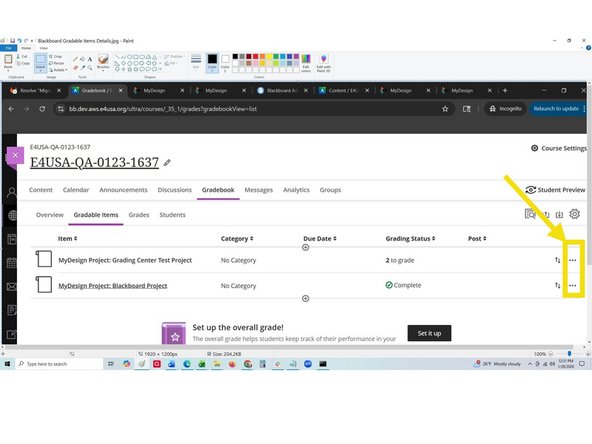
In Gradebook Gradable Items, select ... on the right to see statistics and manage items.
-
-
-
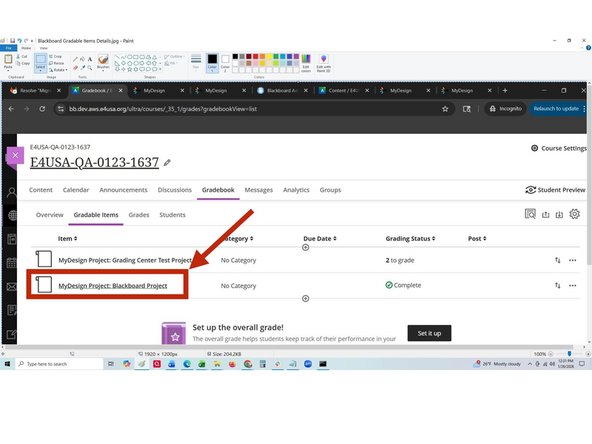
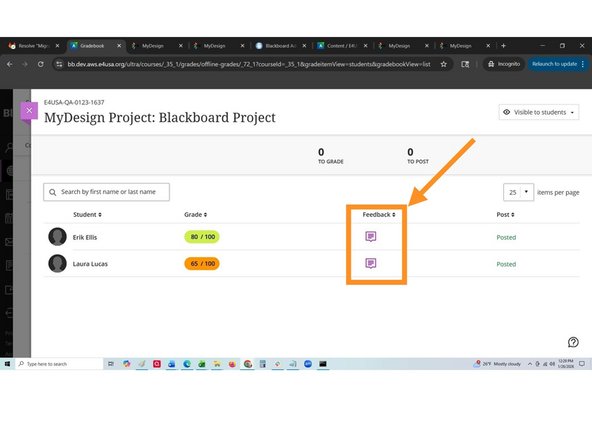
Select Project to view student details
-
Select Feedback to inform students
-
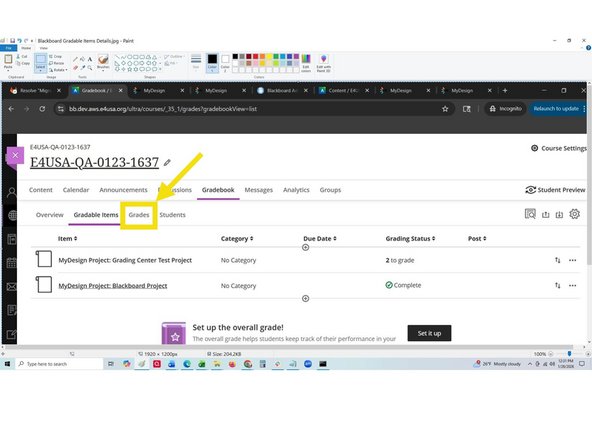
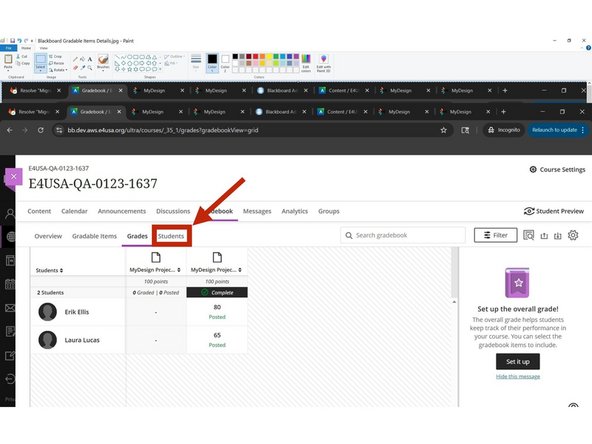
Select Grades from Gradeable Items page
-
-
-
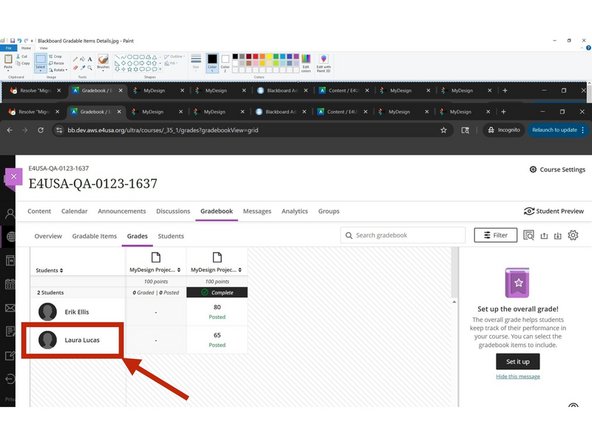
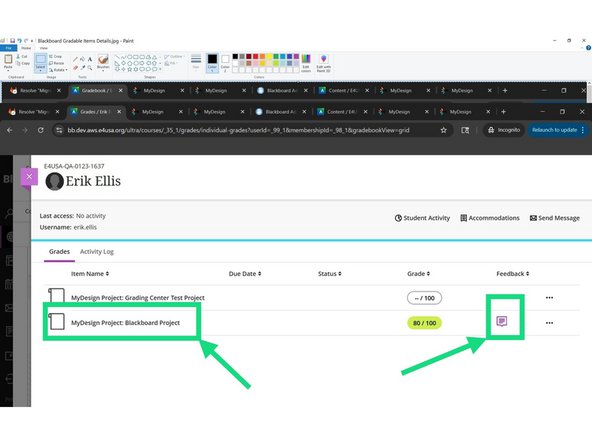
Select Student to view individual grades on projects
-
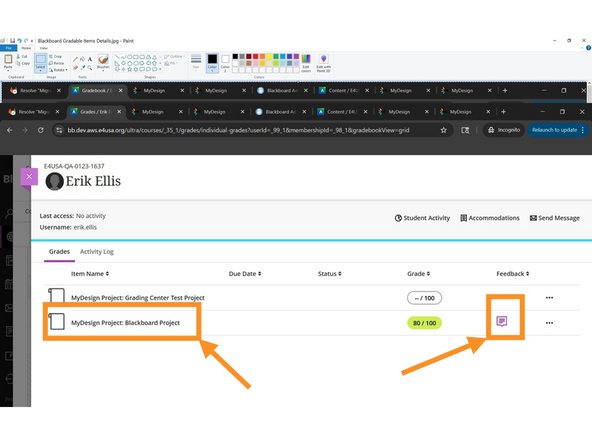
Select Project or Feedback icon to provide feedback to student
-
-
-
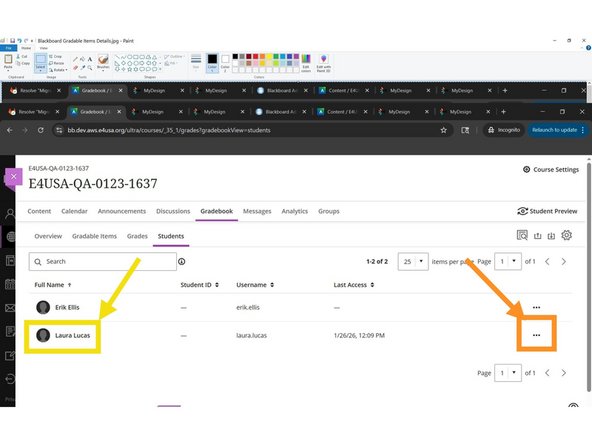
Select Students on Grades Student page
-
Select ... to provide feedback to students
-
Select Student to view student details
-
Select Project or Feedback icon to provide feedback to student
-
-
-
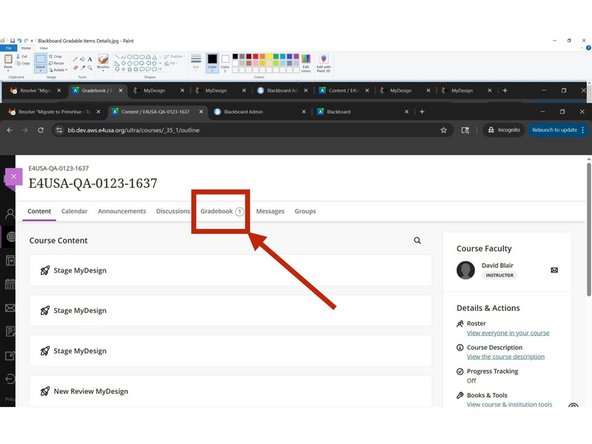
In Course Content screen, select Gradebook
-
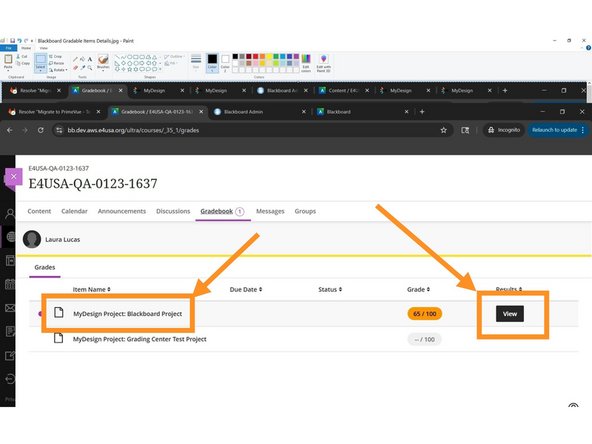
Select Project or View to provide feedback to students
-


Team
